
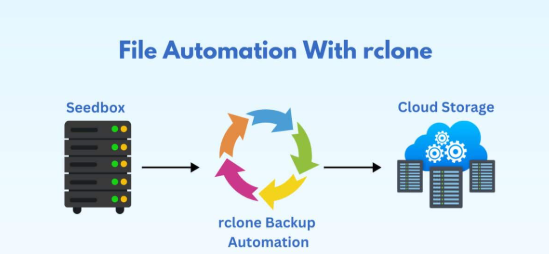
Cloud storage and data management have become essential for both consumers and businesses in the current digital era. Data backup management and automation become increasingly important as more companies migrate to the cloud. Rclone was one of the most useful tools I learned to utilize during my time at St. Lawrence College (SLC), where I had the chance to work with a variety of cloud solutions. A robust command-line tool called Rclone makes it easy to manage, backup, and synchronize files between a local file system and cloud storage services. The advantages of using rclone, my experience configuring it for cloud storage providers, and its usefulness in automating backup chores will all be covered in this blog post.
What is Rclone?
More than 40 cloud storage providers are supported by the open-source command-line utility Rclone, including well-known ones like Google Drive, Amazon S3, Dropbox, and OneDrive. Syncing, copying, and transferring data between cloud storage providers and across cloud storage is made possible by this feature, which lets users manage files on cloud storage in the same way that they would on a local file system. Because of its great adaptability and ability to manage encrypted cloud storage, Rclone is a preferred option for data management at the individual and business levels.
Rclone is an essential tool for an IT expert like me. It is a great option for automating processes like backups because it supports a large number of cloud providers and permits scheduled operations. Another useful skill I picked up while studying at SLC was how to link it with cron tasks on Linux systems to perform backups or cloud synchronization at predetermined times.
Installing Rclone
Installing rclone on my Linux server was the first step in the process. The installation procedure was simple, and I had little trouble following the directions because of the documentation. I installed rclone on Ubuntu using the following commands:
curl https://rclone.org/install.sh | sudo bash
After installation, I verified that rclone was working correctly by running:
rclone version
This displayed the version of rclone installed, confirming that the tool was ready to use.
Configuring Rclone for Cloud Storage
Configuring Rclone to securely and effectively communicate with cloud storage systems was one of the most important things I learned at SLC. Setting up a “remote,” or configuration that points to a cloud provider, authenticates the connection, and specifies the steps rclone will do, is a step in the Rclone configuration process.
1. Configuring API Authentication
The first step in configuring rclone for cloud storage is authenticating the connection with the cloud provider. Rclone supports multiple cloud providers, and each one requires a slightly different setup process. For example, I configured rclone with Google Drive by following these steps:
- I ran the command rclone config to initiate the configuration process.
- I selected “n” to create a new remote and chose “drive” as the cloud provider.
- I followed the prompts to authenticate with my Google account. This involved visiting a URL in my web browser, logging into my Google account, and allowing rclone to access my Google Drive. I then copied the authentication token back into the terminal.
This process took only a few minutes, and once complete, rclone was configured to interact with my Google Drive account.
2. Setting Up Cloud Storage Remote
Once authenticated, I created a remote named gdrive to link to my Google Drive account. The following command allowed me to test the configuration:
rclone ls gdrive:
This command listed all the files in my Google Drive, confirming that rclone was successfully connected.
Syncing Data with Cloud Storage
One of the most practical uses of rclone is its ability to sync local files with cloud storage. During my time at SLC, I used rclone to automate backups of my WordPress website and sync important documents to the cloud. With just a few simple commands, I was able to ensure that my files were safely stored in the cloud and easily accessible from any device.
For instance, to sync a local directory to Google Drive, I used the following command:
rclone sync /path/to/local/directory gdrive:/backup-directory
This command ensured that the contents of the local directory were synced with the designated folder on Google Drive. Rclone only uploaded new or modified files, saving bandwidth and ensuring that the backup was efficient.
Secure File Transfer and Encryption
One of the standout features of rclone is its ability to encrypt files before uploading them to the cloud. This ensures that sensitive data is protected and only accessible by authorized users. During my SLC project, I implemented encryption for backup files that were synced with Google Drive.
To enable encryption, I set up an encrypted remote using rclone’s crypt feature:
rclone config
Here, I selected the crypt option and followed the prompts to configure an encrypted remote. This allowed me to securely transfer files to cloud storage, where they were automatically encrypted. I could then decrypt the files when needed, ensuring that sensitive data was kept safe throughout the process.
Automating Cloud Backups with Cron Jobs
One of the most powerful features of rclone is its ability to integrate with cron jobs on Linux systems. Cron jobs allow users to schedule tasks to run at specific intervals, which is essential for automating regular backups. For example, I used cron to schedule daily backups of my WordPress website to Google Drive using rclone.
The cron job configuration to run rclone every day at 2 AM is as follows:
0 2 * * * rclone sync /var/www/html gdrive:/wordpress-backups
This ensured that every night at 2 AM, my website’s files were backed up to Google Drive, making the process fully automated and reducing the risk of data loss.
Verifying Successful Uploads
One of the final steps in ensuring that backups were successfully uploaded to the cloud was verifying the transfer. I used rclone’s ls command to list files stored in the cloud and confirm that the backups were uploaded successfully:
rclone ls gdrive:/wordpress-backups
This command listed the files in the backup folder on Google Drive, ensuring that the process was working as expected.
Conclusion
Learning to use rclone for cloud storage was one of the most valuable experiences I had during my time at St. Lawrence College. It taught me not only how to automate the process of syncing and backing up data but also how to securely manage and transfer files to cloud storage providers. The combination of rclone’s versatility, security features, and integration with cron jobs made it an essential tool for IT professionals, and I believe it will continue to be a critical part of my skillset moving forward. Whether you’re a student or an experienced IT professional, rclone is a tool worth mastering for managing cloud storage efficiently.
This blog post outlines my learning experience with rclone and provides practical insights into how it can be used for cloud storage management and automation